Amending a Prescription from the Workbench
- Highlight a prescription on the Workbench Completed tab.
- Press the Correct button.
- Press the Amend button.
- The prescription opens in Rx Detail and AMEND is indicated at the top of the window.
- You can change the QA, SIG, user initials, notes, or any other fields that are enabled.
- You cannot change the doctor, drug or pricing information.
- Press the OK button.
- The Amend Prescription prompt asks "Do you wish to print a new file copy and label?". To print a new label set, press Yes. Press No if you do not want a label set at this time.
- If multiple prescriptions were selected for Amend, the next prescription will appear in Rx Detail. Repeat steps 4-6 for each prescription.
The screen returns to the Workbench and no rows are highlighted. The amended prescription is on to the Completed tab for the fill date, with a status of Amend and the same Rx#.
Note: Prescriptions are listed by the date the prescription was completed, not the date it was amended.
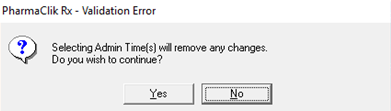
Note: If a prescription has administration times outlined in the Administration Details window and you are amending this prescription to update the Admin Time(s) outlined in Rx Detail, the Administration Details window appears with a prompt to ensure you are reviewing or making any necessary changes prior to filling.